

TIPS & TRICKS FOR CURIO USERS
Using the language function for multiple voices
We all understand the importance of incorporating multiple perspectives into exhibits. It’s part of a growing understanding that there is no single source of truth, but many different ways of looking at pretty much everything.
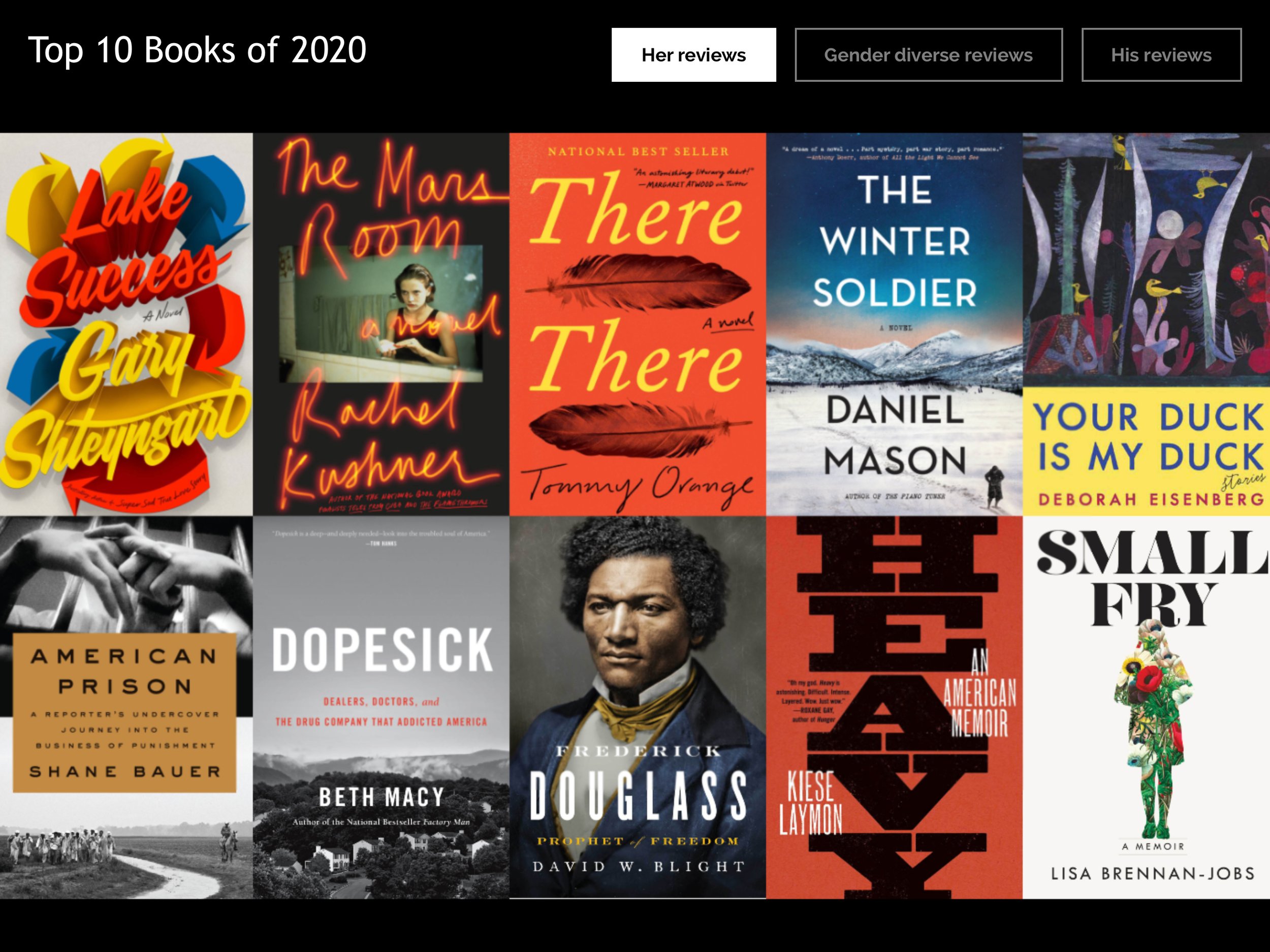
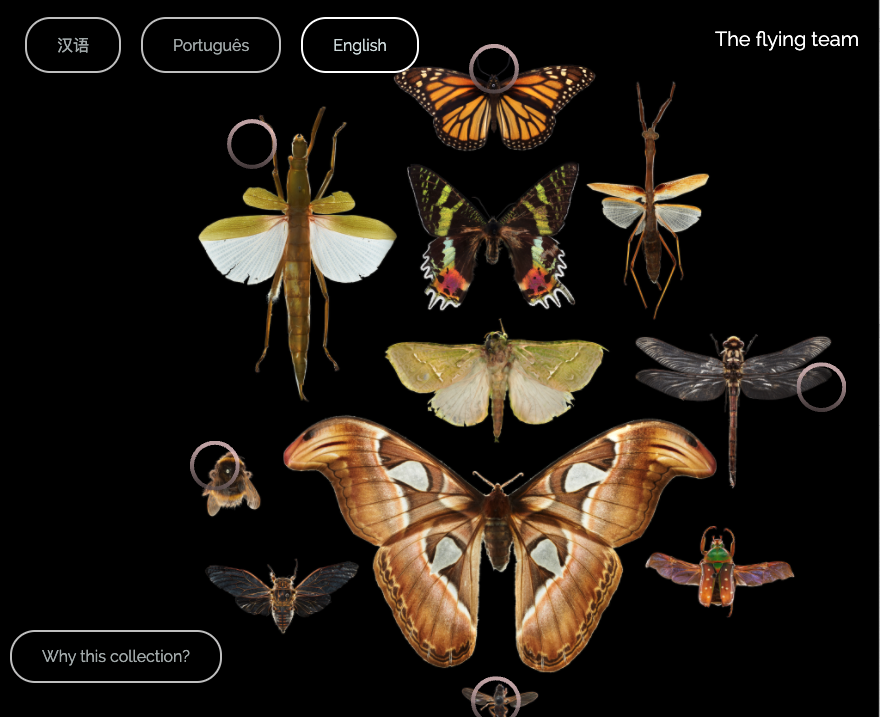
Curio has many ways to help to express that multiplicity. One of them is to re-purpose the language feature. By renaming a “language option button” as “a different perspective button” you can give visitors the choice of which perspective they want to know more about.
Here’s how it works:
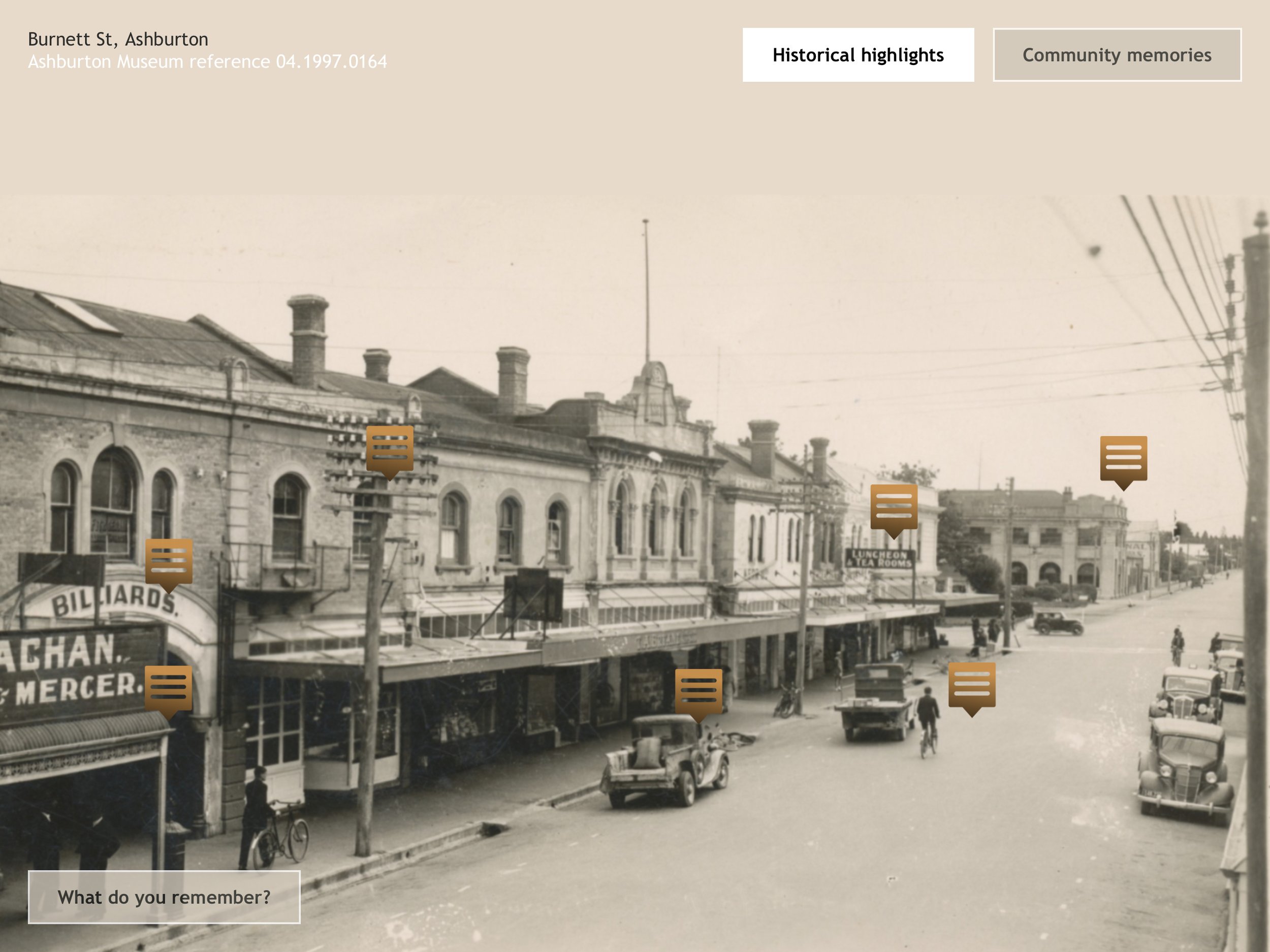
Say you want to create a Curio exhibit about a particular display case. The original content on your highlights could be based on material provided by expert curators. But you also decide you want to add in a child’s perspective, and just for good measure, a fun facts layer called “Quirky Facts”.
You might create the “Curator’s Notes” layer of highlights first. To give it that name, select Languages from the main menu on the left. Click where it says English (the default language in Curio). Then click on the little pencil to the right, and rename the layer “Curator’s Notes”.

To add another perspective or layer, let’s say, “Just for us kids”, go to Languages again, and choose another language from the pull-down menu. Choose any language - let’s say Abkhazian. Press Add Language to select it, and again change the name of the button to “Just for us kids”. The choice of the language does not matter. You are simply using the pull-down menu to create new perspective options for your content, and it happens to be pre-populated with the names of languages (given its original purpose). As anywhere in Curio, you can still input your content in whatever language you like.
Now that you have two different perspectives or layers on your interactive, their respective buttons will appear on screen. You can go ahead and create a third perspective such as “Quirky Facts” in the same way. You can add as many as you like (and can fit on the screen).

The Language function is used by renaming languages and using them for different voices or perspectives.
The highlights in each perspective layer will be on the same places on the hero image, but the content of each highlight can be completely different. The “Curator’s Notes” might include detailed text and expert video, whereas the Child’s Perspective might feature fun, brief notes and audio interviews with kids. The “Quirky Facts” layer might consist entirely of bullet points. It’s totally up to you.
There’s no reason why you couldn’t also use the language option for the purpose for which it was originally designed in the same Curio interactive. That is, to add real “language buttons” alongside your “perspective buttons” to incorporate content in other languages as well.
Happy Multiplicity!
CONTENTS
-
2025
2
- Jan 29, 2025 Hero Image - should you select lock or not (zoomable)? Jan 29, 2025
- Jan 8, 2025 Using the new Image Gallery feature Jan 8, 2025
-
2023
1
- Jun 11, 2023 Using the language function for multiple voices Jun 11, 2023
-
2021
1
- Oct 6, 2021 How to use Curio for FREE Oct 6, 2021
-
2020
3
- Dec 7, 2020 How COVID has changed our audiences Dec 7, 2020
- Sep 1, 2020 Technical specs and questions answered Sep 1, 2020
- Mar 12, 2020 Keeping your touchscreen (publicly) clean. Mar 12, 2020
-
2019
4
- Oct 25, 2019 Hardware options for your in-gallery experience Oct 25, 2019
- May 31, 2019 Setting up an iPad as an in-gallery touchscreen May 31, 2019
- Jan 16, 2019 Collaborating with your colleagues Jan 16, 2019
- Jan 14, 2019 Accessibility - how to reach all your audiences. Jan 14, 2019
-
2018
4
- Sep 7, 2018 Languages Sep 7, 2018
- Aug 14, 2018 Publishing your interactive - ta-dah! Aug 14, 2018
- Aug 14, 2018 Previewing your interactive Aug 14, 2018
- Jul 18, 2018 Customising the look of your interactive Jul 18, 2018
-
2017
5
- Aug 16, 2017 Hero images Aug 16, 2017
- May 31, 2017 The best uses for overviews May 31, 2017
- May 31, 2017 When to have a title May 31, 2017
- May 31, 2017 Making great highlights May 31, 2017
- Feb 16, 2017 Recording Audio Feb 16, 2017