

TIPS & TRICKS FOR CURIO USERS
Hero Image - should you select lock or not (zoomable)?
A new feature (as requested by you!), is that you can now make your hero image locked - a choice you can make when you upload the image.
Why Lock?
The locked hero image is ideal when you want to keep the image static, and don’t need visitors to zoom in.
The most common use is when your hero image is a menu of choices (rather than an object to explore):

This hero image is a diagram of the fish lifecycle - and each circle is a highlight with a story.

This hero image is a graphic of portraits of the hard working dogs at the Arkansas Game and Fish Commission - selecting each dog opens a highlight with their story (and favourite things to do!).
For these examples above, the highlights are set to transparent (0% opacity) in the Customise feature. That just means they are invisible to the visitor - because it’s intuitive to just click on the menu choices in the hero image - you don’t need to be shown where to click.
Why not lock?
If your hero image is not locked, then visitors can move around the image, and zoom in, for a closer look.
This is really ideal where you have details for visitors to discover:

A tiny detail in this famous painting is highlighted for visitors to zoom in and find. Zooming right in allows this masterful painting to be explored in way more detail than you could see in real life.
There’s more examples of hero images in use here - and these will give you ideas of what other people are doing, using this new feature.
Using the new Image Gallery feature
You can now add multiple images to a highlight by simply selecting as many images as you want, and uploading them.
Once uploaded, you can change the order of them, and add captions, or image credits, to each one.

You can drag and drop to change the order of your images; it’s a good idea to choose a strong first image to encourage your visitor to enlarge and open the gallery.
For the visitor these images appear when the highlight is selected, and the first image is shown. They can then click to enlarge as normal - then they can swipe or click through the gallery of images.
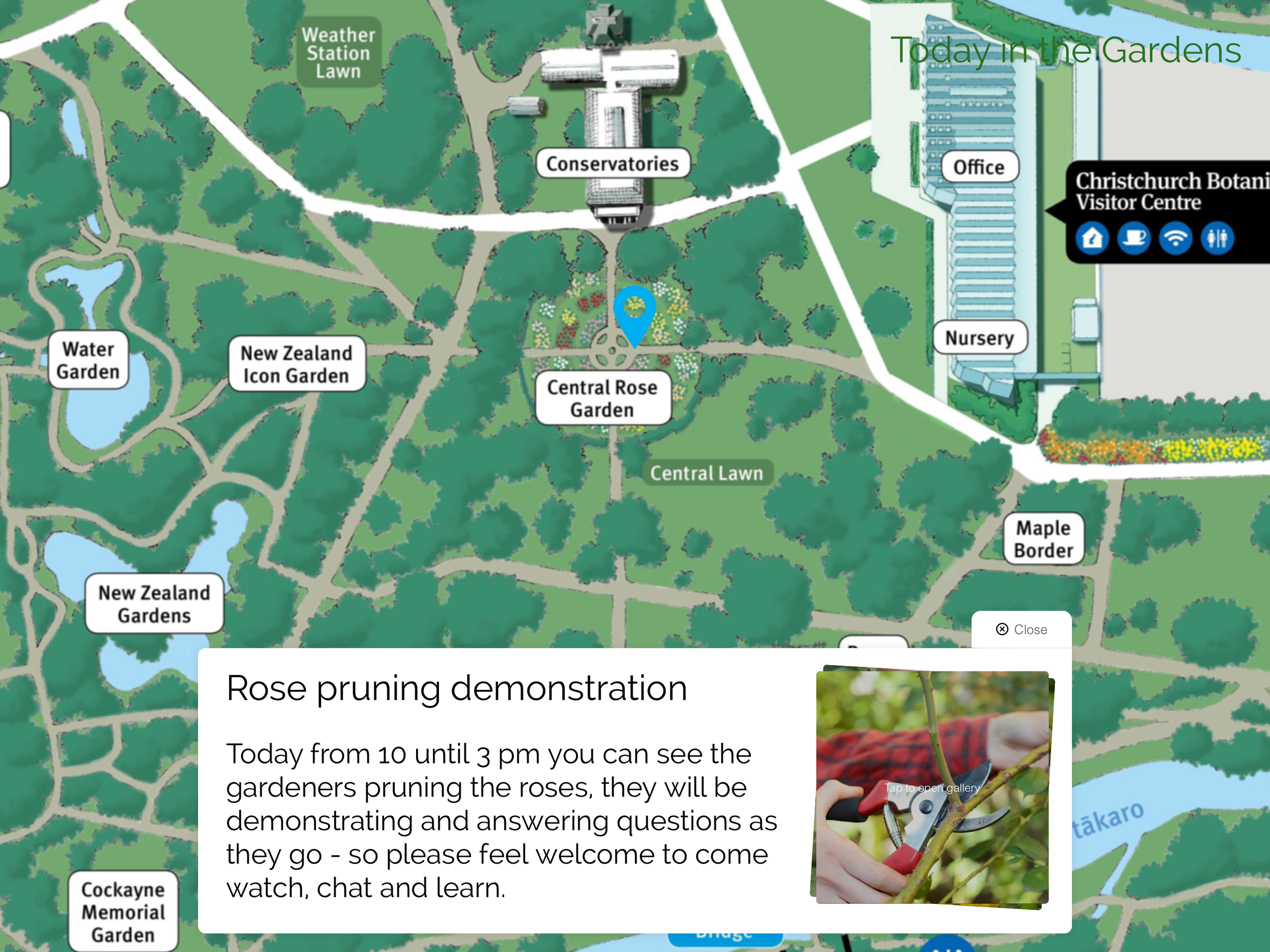
The highlight appears as normal (this one with intro text) and users are prompted to click to open the gallery.
When using multiple images, these will appear on a uniform black background, so the font used in an image caption will be white. You can still change fonts and sizes, but for the image gallery you can’t change the colour.

Visitors can swipe through the gallery, or click previous or next buttons on screen.
CONTENTS
-
2025
2
- Jan 29, 2025 Hero Image - should you select lock or not (zoomable)? Jan 29, 2025
- Jan 8, 2025 Using the new Image Gallery feature Jan 8, 2025
-
2023
1
- Jun 11, 2023 Using the language function for multiple voices Jun 11, 2023
-
2021
1
- Oct 6, 2021 How to use Curio for FREE Oct 6, 2021
-
2020
3
- Dec 7, 2020 How COVID has changed our audiences Dec 7, 2020
- Sep 1, 2020 Technical specs and questions answered Sep 1, 2020
- Mar 12, 2020 Keeping your touchscreen (publicly) clean. Mar 12, 2020
-
2019
4
- Oct 25, 2019 Hardware options for your in-gallery experience Oct 25, 2019
- May 31, 2019 Setting up an iPad as an in-gallery touchscreen May 31, 2019
- Jan 16, 2019 Collaborating with your colleagues Jan 16, 2019
- Jan 14, 2019 Accessibility - how to reach all your audiences. Jan 14, 2019
-
2018
4
- Sep 7, 2018 Languages Sep 7, 2018
- Aug 14, 2018 Publishing your interactive - ta-dah! Aug 14, 2018
- Aug 14, 2018 Previewing your interactive Aug 14, 2018
- Jul 18, 2018 Customising the look of your interactive Jul 18, 2018
-
2017
5
- Aug 16, 2017 Hero images Aug 16, 2017
- May 31, 2017 The best uses for overviews May 31, 2017
- May 31, 2017 When to have a title May 31, 2017
- May 31, 2017 Making great highlights May 31, 2017
- Feb 16, 2017 Recording Audio Feb 16, 2017